How to Transfer TeraBox Downloads Wirelessly on Android
TeraBox is a powerful cloud storage service for Android users, allowing you to store, manage, and download files easily. But what if you want to transfer these downloaded files to another device without cables? Luckily, TeraBox and Android devices make wireless file transfers simple, fast, and convenient.
In this guide, we’ll show step-by-step how to transfer TeraBox downloads wirelessly.
Why Transfer TeraBox Files Wirelessly?
Wireless file transfers are popular because they:
- Save time — no cables needed
- Work between phones, tablets, and computers
- Allow bulk transfers of photos, videos, and documents
- Reduce the risk of tangled or lost cables
Whether you want to share a downloaded movie, music, or work documents, wireless transfers are convenient and safe.
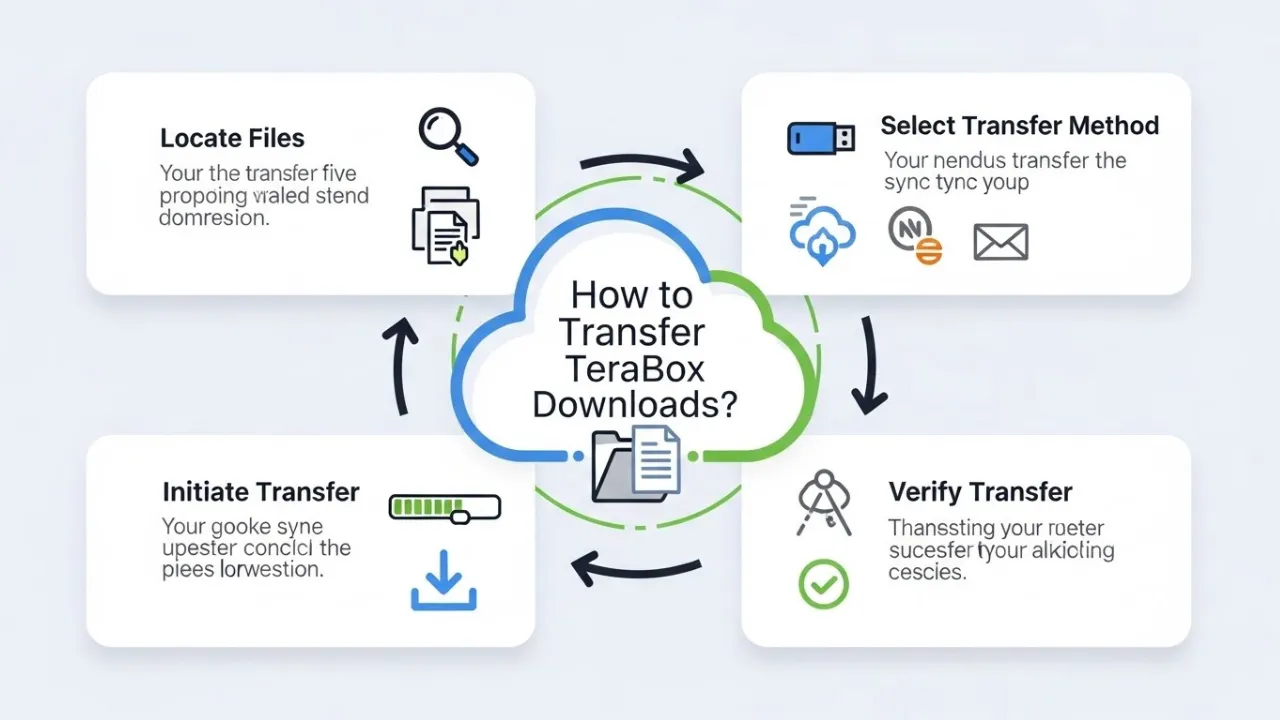
Method 1: Using TeraBox App Share Feature
TeraBox allows you to share files directly from the app:
- Open the TeraBox app on your Android device.
- Navigate to the downloaded file or folder you want to transfer.
- Tap the Share icon.
- Choose “Share via link” or “Nearby Share”.
- If using a link, send it via email, WhatsApp, or any messaging app. The recipient can click the link to download the file.
- If using Nearby Share, make sure the other Android device has Bluetooth and Wi-Fi enabled to complete the transfer.
Tip: Nearby Share is faster for large files and avoids the need for external apps.
Method 2: Using Wi-Fi File Transfer Apps
There are several apps designed to transfer files over Wi-Fi between Android devices. Some popular options include:
- SHAREit
- Send Anywhere
- AirDroid
Here’s how it works with most apps:
- Install the Wi-Fi transfer app on both devices.
- Open the app and select Send on your Android device with the TeraBox downloads.
- Select the files you want to transfer.
- On the receiving device, select Receive.
- Connect both devices to the same Wi-Fi network (or use hotspot mode).
- Start the transfer — files will move wirelessly in seconds or minutes, depending on size.
Tip: These apps are especially useful for large video files or bulk folders from TeraBox.
Method 3: Using Cloud-to-Cloud Transfer
You can also transfer TeraBox downloads via cloud sharing:
- Upload the files back to TeraBox if needed.
- Log in to TeraBox on another Android device or PC.
- Download the files directly to the second device.
This method works for both personal backups and sharing files with friends or colleagues. It’s slower than direct wireless transfer but doesn’t require additional apps.
Tips for Smooth Wireless Transfers
- Stable Wi-Fi: Ensure both devices are on a stable network for faster transfer.
- Battery Check: Large transfers can drain battery quickly; keep devices charged.
- Organize Files: Before transferring, group files into folders to simplify the process.
- Use Personal Vault for Sensitive Files: If transferring confidential files, store them in TeraBox’s Personal Vault and share securely.
Final Thoughts
Transferring TeraBox downloads wirelessly on Android is easier than many users think. Whether you use TeraBox’s built-in share feature, a Wi-Fi transfer app, or cloud-to-cloud methods, you can move files safely and quickly without cables.
By following these tips, you can enjoy seamless file sharing, backup, and device syncing — making TeraBox not just a cloud storage tool, but a complete file management solution for Android users.